How to Create a Premium Listing
moboclassified October 15, 2026 No Comments

So you have found the mobo classified website, and you want to post your products that you have for sale or your professional services that you render. This article will show you in detail how to post a premium listing on https://mobo.ng classified website.
You can post whatsoever product you sell like electronics, building materials, medical supplies, clothing, shoes, phones & gadgets, home decor items, spiritual items, furniture, electrical items, plumbing items, kiddies toys, supplements e.t.c. You can also post your professional services like carpentry, plumbing, engineering, website designer, SEO specialist, driver, Pilot, Fashion designer, marketer, artistry e.t.c
Below is the detailed step by step guide to post a premium listing
How to post a premium Listing
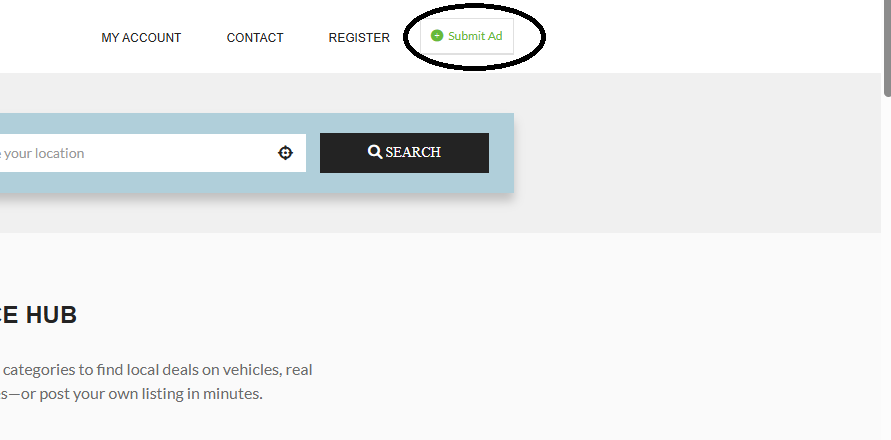
- Click on Submit ad on the top right corner of the home page if you are using a desktop computer. You can find it glued to the bottom of the screen if you are using a mobile device. If you have already signed up, it would take you directly to the submit ad page.
- If you have not signed up already, enter your preferred username, email and password. Ensure that your email address has not been taken. Click to agree to our terms and condition, then click on register. Ensure that you read our terms and conditions properly before you agree.
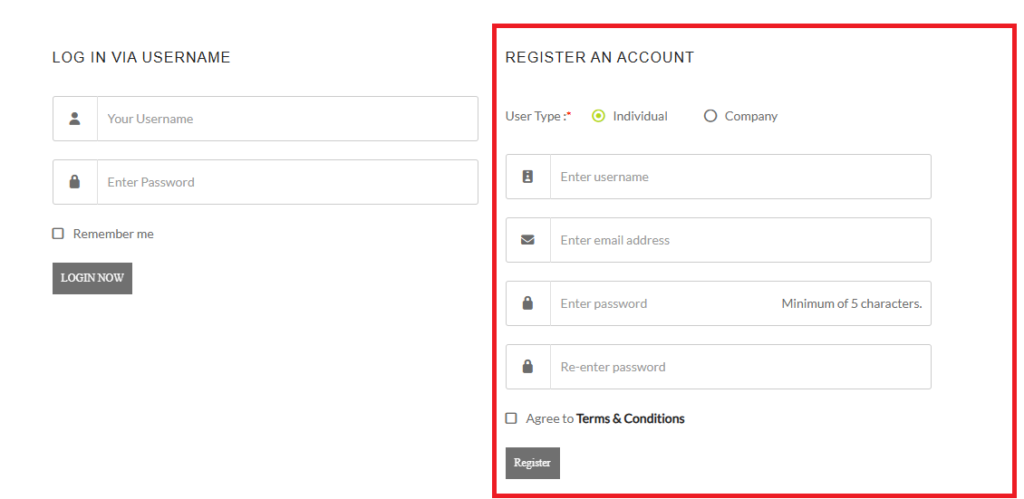
register
- You would receive an email confirming your registration and it would also contain your username and password. Keep it safe. Immediately after your sign up you would be redirected to your mobo dashboard. You would have to verify your account to complete your registration. Click on ‘Profile settings’ to verify your account.
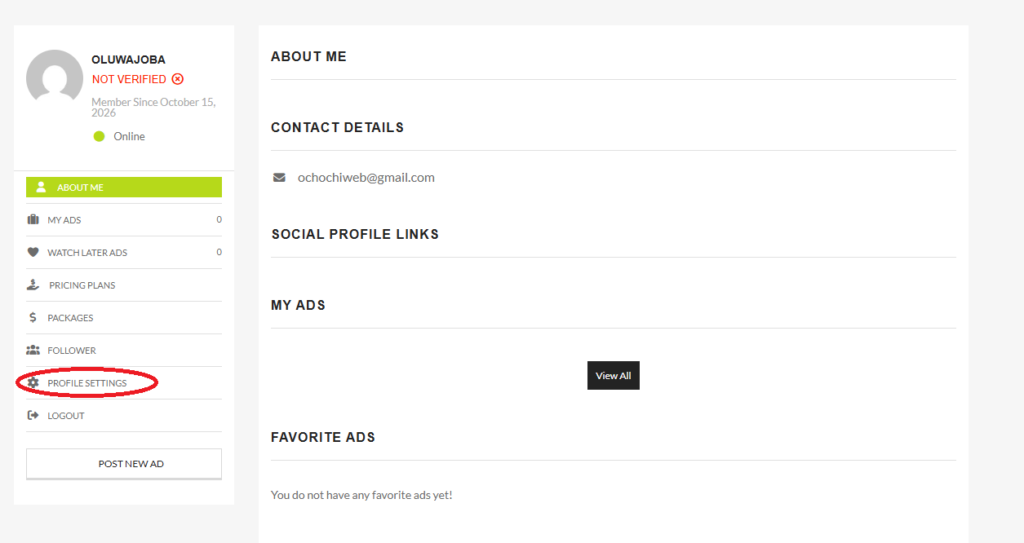
Dashboard
- Click on verify account to proceed with the verification. A pop-up will show up, then select get verification code.
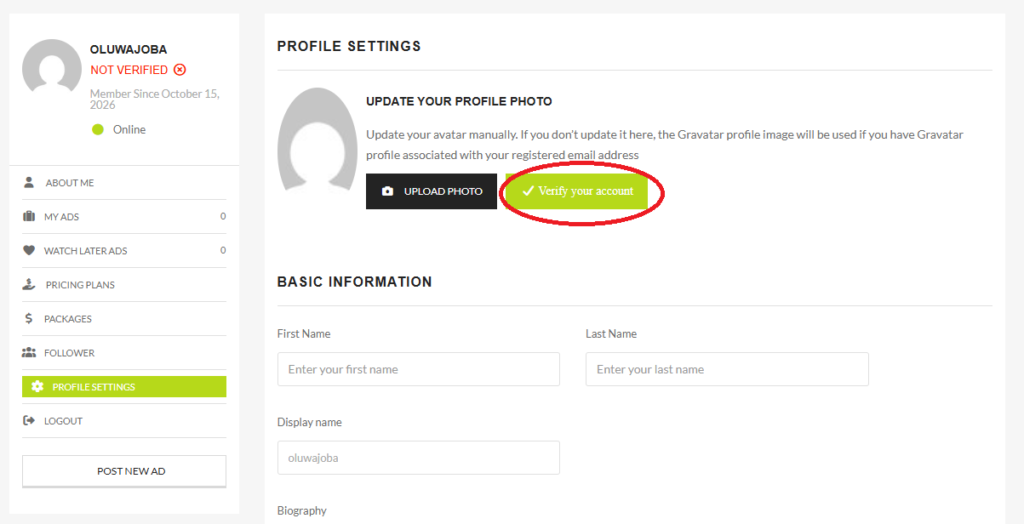
Verify Account
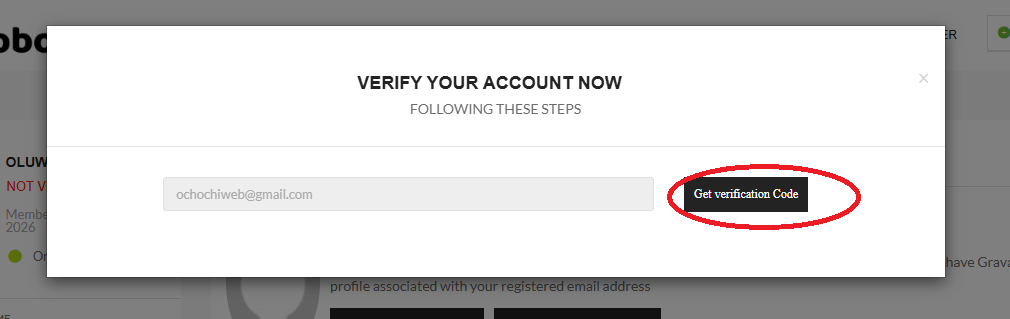
verification code
- Copy the verification code you received and paste it in the box that is provided for it, then click verify now. Congratulations, your account is now verified.
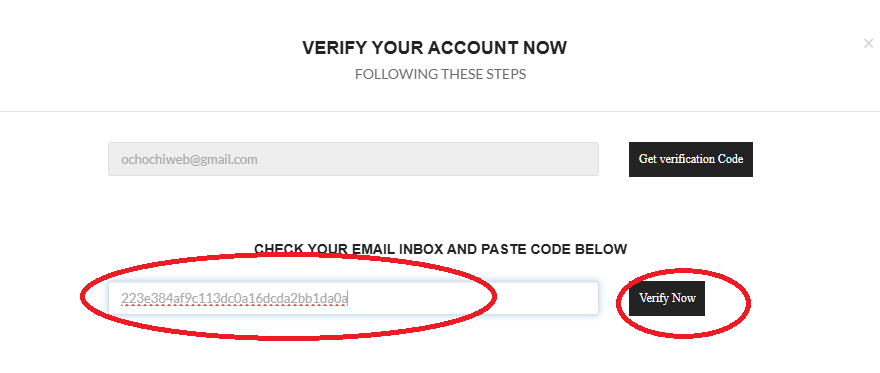
Code
- Now that you are signed up, let us proceed to post our listing. Click on Submit ad and you will be redirected to the submit ad page. Select your category, and your type of AD.
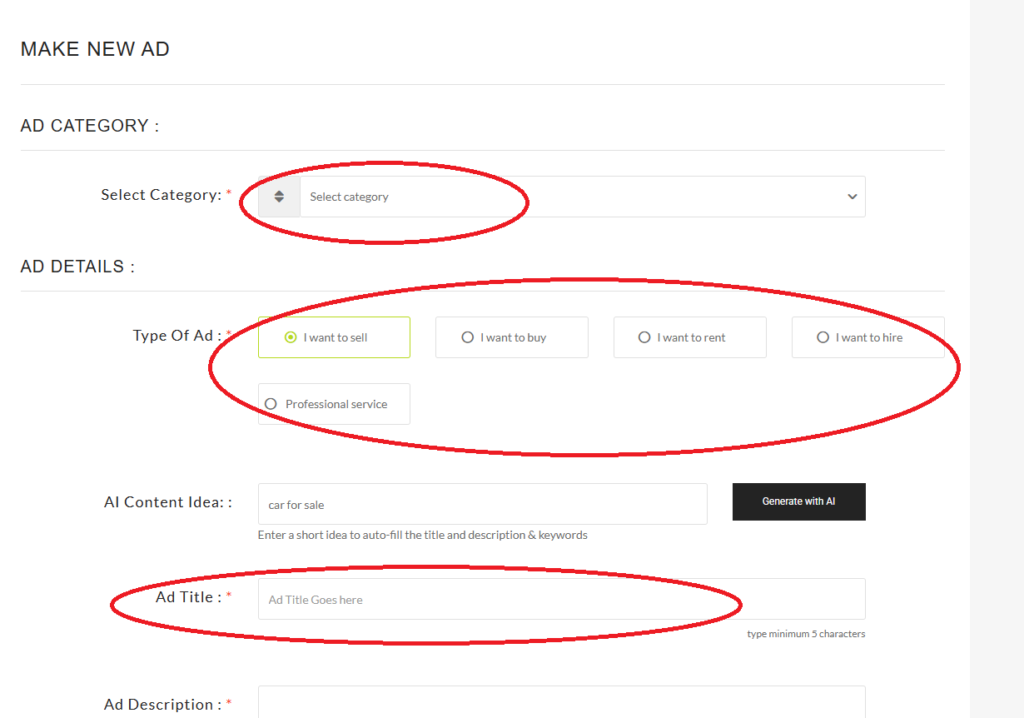
Ad title
- Whether you have a product to sell, you want to hire or you want to advertise your professional service, select the one that applies to you.
- Enter your ad title which can be the name of the product you want to advertise for sale, and also enter the description or attributes of the product.
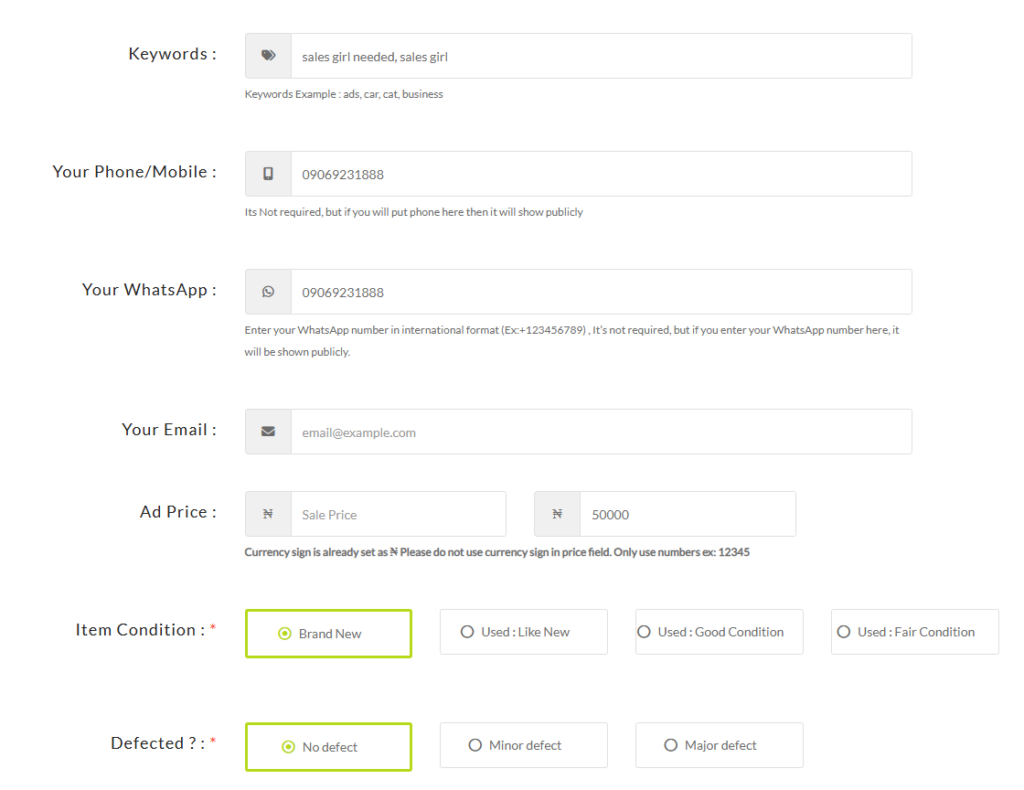
- Enter keywords relating to your products to increase the visibility of your listing. Enter your whats-app number, and your email if you want customers to reach out to you via email. Enter your Ad price. Select your Item condition where applicable and let your customers know if it has any defect.
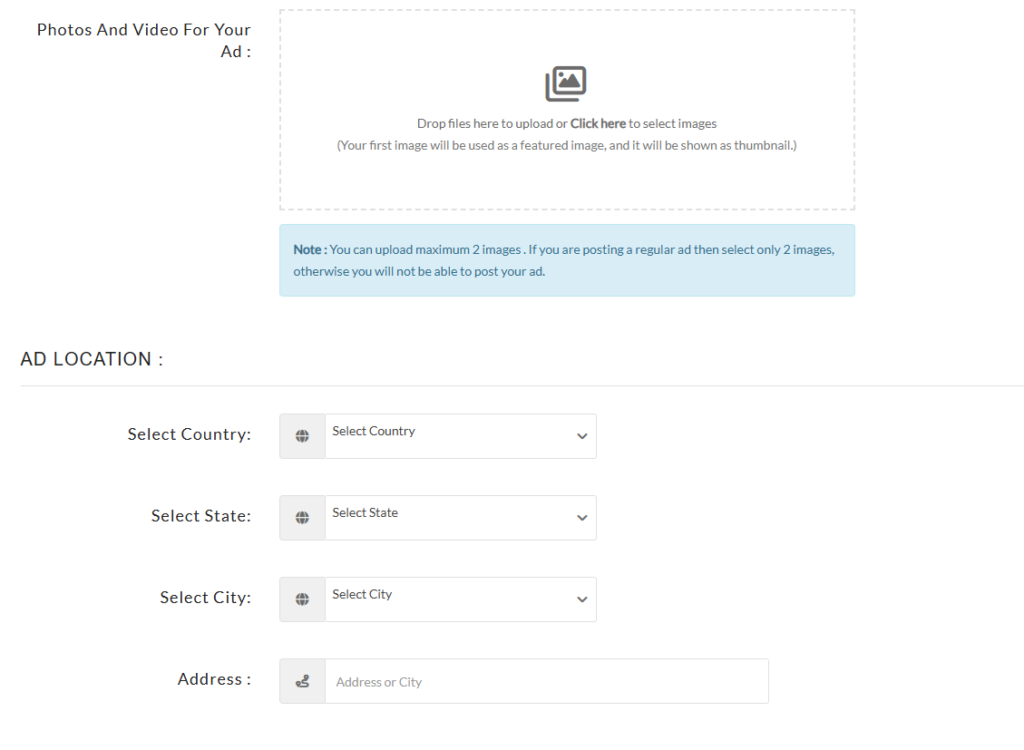
Upload Image
- Upload the image of your product, Select your location by updating your country, state, city and address.
- Click Publish ad.
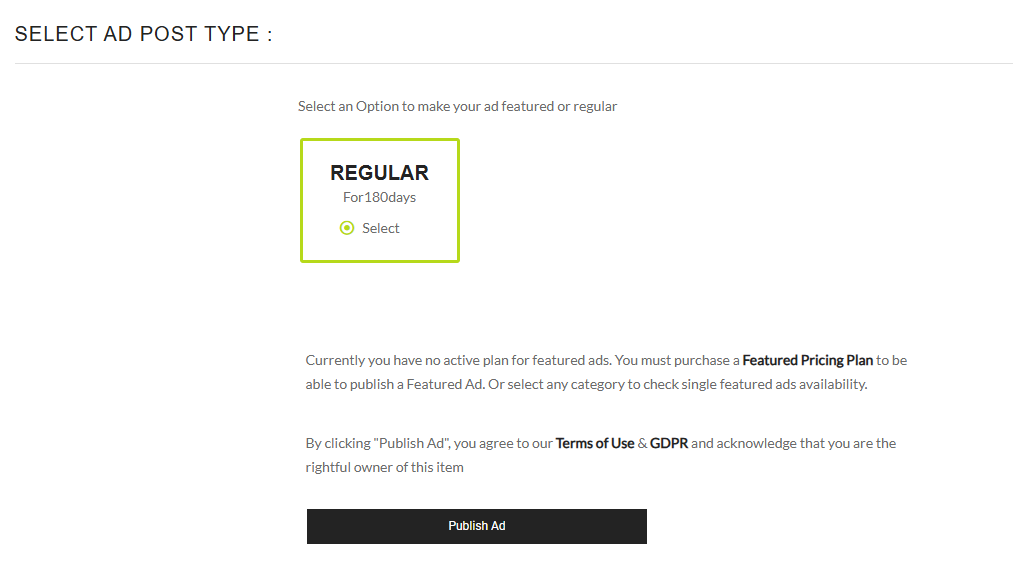
Publish AD
- You have the opportunity to post 5 free ads. If you also want the ads to gain more visibility among-st other ads, you can subscribe to our premium packages. Your advert will be listed at the top of all other adverts after you subscribe.
- All Done, All you have to do is wait for your ad to be approved.
Leave a Comment
Your email address will not be published. Required fields are marked. *